

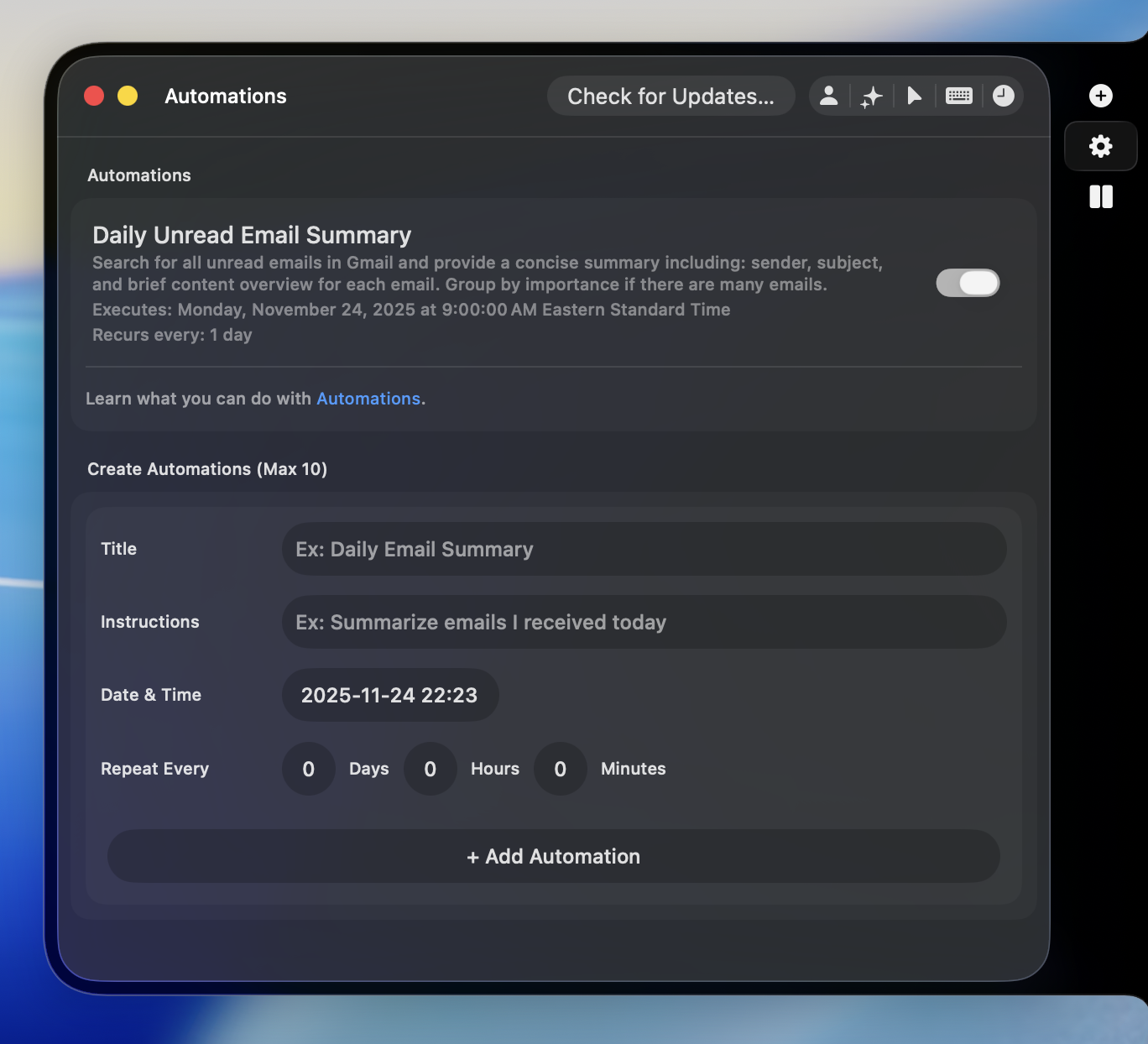
Recurring Automations turn AI Thing into a personal operations layer for your day-to-day life — handling routine tasks automatically, on your schedule, using your own model and agents.
Create Automations
You can set up automations however you prefer — either naturally, by writing what you want, or manually through settings.Create Automations Using Natural Language
Create Automations Using Natural Language
Just type a message anywhere you use AI Thing that starts with @aithing, followed by what you want it to do automatically.Examples:This is the fastest and most natural way to create automations — just describe what you want done and when.
Create Automations Manually (Settings → Automations)
Create Automations Manually (Settings → Automations)
If you prefer structure or want more control, you can also build automations manually.Each automation has four parts:
- Title — A short, descriptive name
- Instruction — What you want the AI to do
- Start Time — When it should run
- Recurrence — Daily, weekly, hourly, or a one-time future run
Notifications
When an automation runs, you’ll receive a native macOS notification as soon as it completes. This way you always know when:- A summary or report is ready
- A scheduled reminder was sent
- A background workflow finished running
Have questions? Email us at help@aithing.dev.