> ## Documentation Index
> Fetch the complete documentation index at: https://aithing.dev/llms.txt
> Use this file to discover all available pages before exploring further.
# Get Started
> Start using AI Thing in minutes...
## Get
2.1 Frangipani (Latest)
Windows
1. Go to your **Downloads** folder and double-click the `AI Thing.dmg` file
2. Drag **AI Thing** into the **Applications** folder
3. Open the **Applications** folder and double-click **AI Thing**
4. Show or hide [AI Thing](https://aithing.dev) anytime using `Control (^) + Space`
5. The app appears as a **small movable notch** on the right edge of your screen
## Set
1. Open **Settings**
2. Go to the **Accounts** tab
3. Click the **Google** button
Try the [Google Workspace agent](./features/multiple-agents) to perform tasks across Gmail, Docs, Sheets, Calendar, and much more.
1. Open **Settings**
2. Go to the **Models** tab
3. Click **Add API Key**
4. Get your **Anthropic API key**:\
[https://console.anthropic.com/settings/keys](https://console.anthropic.com/settings/keys)
5. Paste your key (starting with `sk-ant-...`)
Enables Claude Haiku 4.5, Sonnet 4.5, and Opus 4.5 models.
1. Open **Settings**
2. Go to the **Models** tab
3. Click **Add API Key**
4. Get your **OpenAI API key**:\
[https://platform.openai.com/settings/organization/api-keys](https://platform.openai.com/settings/organization/api-keys)
5. Paste your key (usually starts with `sk-...`)
Enables GPT-5 Mini, GPT-5 Nano, and GPT-5.1 models inside AI Thing.
1. Open **Settings**
2. Go to the **Models** tab
3. Click **Add API Key**
4. Get your **Gemini API key**:\
[https://ai.google.dev/gemini-api/docs/api-key](https://ai.google.dev/gemini-api/docs/api-key)
5. Paste your key (often begins with `AIza...`)
Enables Gemini 2.5 Flash, Gemini 2.5 Pro, and Gemini 3 Pro models.
AI Thing will request each permission **only when needed**, but you can enable them manually if you prefer.
Read more in the [Privacy Policy](/privacy).
1. Open **System Settings**
2. Go to **Privacy & Security → Screen Recording**
3. Enable **AI Thing**
4. Restart the app if macOS prompts you
Required only if you want to use any open application as context.\
[Learn more](/features/selective-context)
1. Open **System Settings**
2. Go to **Privacy & Security → Accessibility**
3. Enable **AI Thing**
4. Confirm when macOS asks for permission
Required for selected text and automation interactions.\
[Learn more](/features/selective-context)
1. Open **System Settings**
2. Go to **Privacy & Security → Files and Folders**
3. Enable access for **AI Thing**
4. Select Desktop / Documents if prompted
Required only if you want to load files into AI Thing or use native macOS screenshots for context.\
[Learn more](/features/selective-context)
## Go!
Once installed and configured:
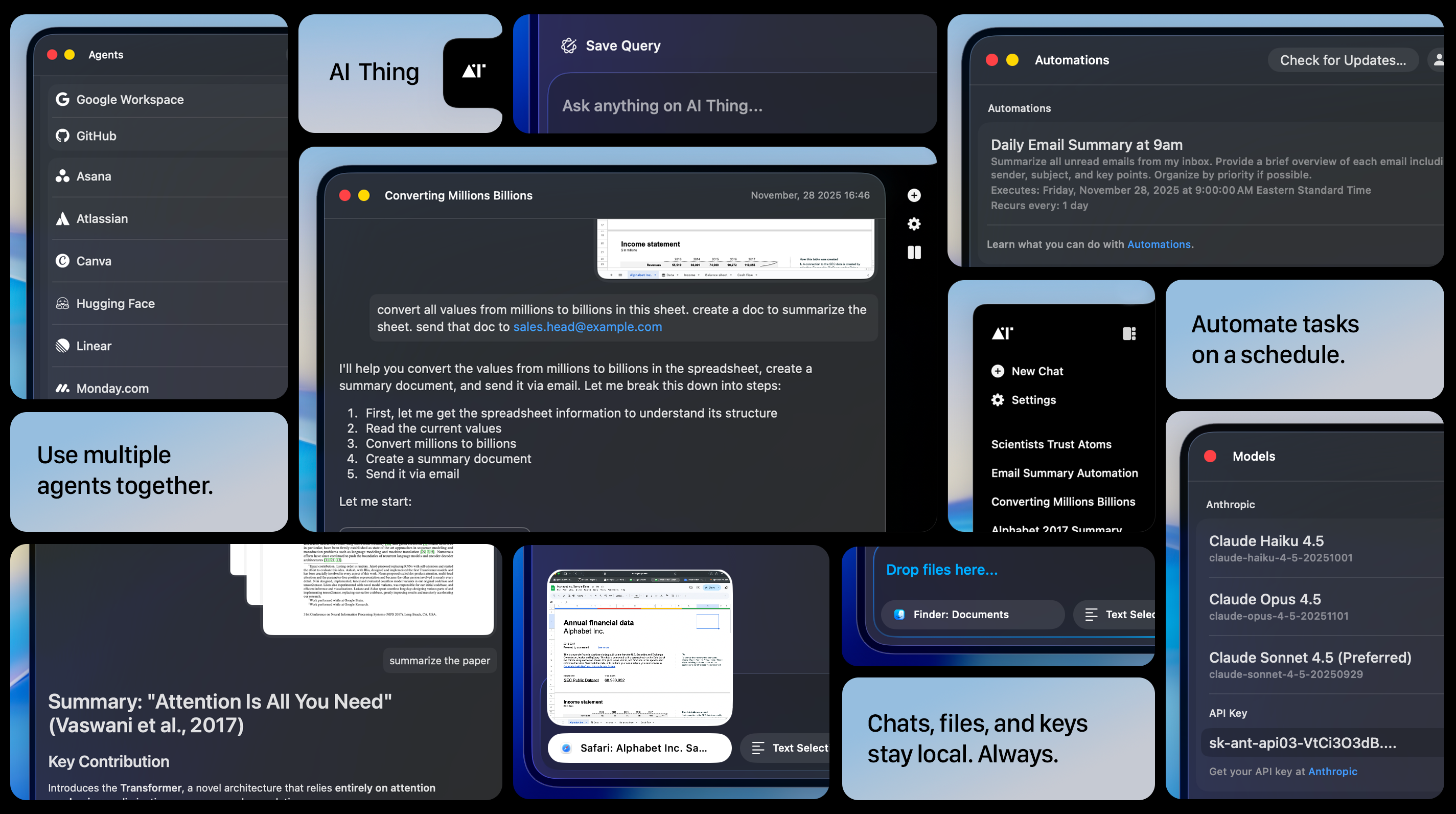
* Connect [agents](./features/multiple-agents) like Google, Notion and many more
* Create recurring [automations](./features/automations)
* And enjoy the full power of a **free, private, local-first AI companion**
***
Have questions? Email us at **[help@aithing.dev](mailto:help@aithing.dev)**.
 ***
Have questions? Email us at **[help@aithing.dev](mailto:help@aithing.dev)**.
***
Have questions? Email us at **[help@aithing.dev](mailto:help@aithing.dev)**.