> ## Documentation Index
> Fetch the complete documentation index at: https://aithing.dev/llms.txt
> Use this file to discover all available pages before exploring further.
# Selective Context
> Control exactly what AI sees for maximum privacy and accuracy
Selective Context ensures [AI Thing](https://aithing.dev) sees **only what you intentionally share** — nothing more.\
There is no continuous capture, no background monitoring, and no automatic access to your apps.
## 1. Use Context From Any Application
With a single click, [AI Thing](https://aithing.dev) instantly captures the relevant context from whatever app you’re using.
Whether it’s text you’re highlighting, the window you’re viewing, or content you’re working on.
Enable **AI Thing** under System Settings → Privacy & Security → Screen Recording.
***
## 2. Use “Selected Text” From Any Application
[AI Thing](https://aithing.dev) can also take context from text you’ve selected anywhere on your system:
* In a browser
* In a PDF
* In a code editor
* In email
* In Slack
* In any native macOS app
* Or anywhere...
There is **no need to copy and paste** — the text remains local and ephemeral.
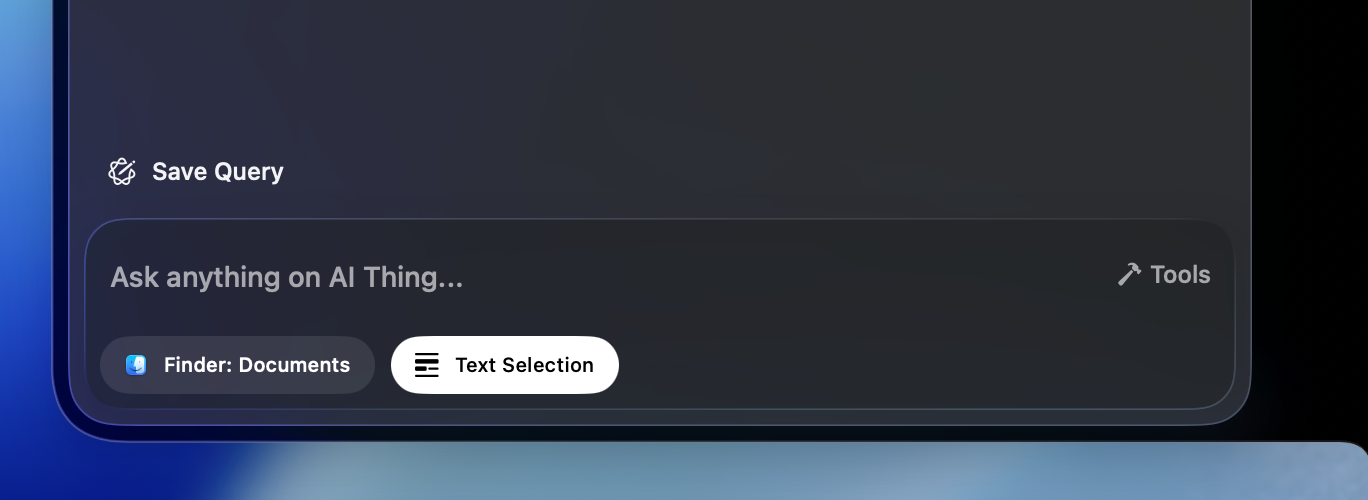 Enable **AI Thing** under System Settings → Privacy & Security → Accessibility.
***
## 3. Use Mac’s Native Screenshot Shortcuts
You capture your screen the same way you normally would on macOS:
* **Shift + Command + 3** → Full screen
* **Shift + Command + 4** → Select an area
* **Shift + Command + 4, then Space** → Capture a single window
Whenever you take a screenshot using these native shortcuts, it instantly appears inside the [AI Thing](https://aithing.dev) window — ready to be used as context.
You decide when and what to capture.
Enable **AI Thing** under System Settings → Privacy & Security → Files & Folders.
***
## Built for Privacy
[AI Thing](https://aithing.dev) assumes **everything on your screen is sensitive**, so it only uses context you explicitly provide:
* No continuous capture
* No background listening
* No automatic access to windows
* No syncing to servers
* No storage of screenshots or selected text
***
Have questions? Email us at **[help@aithing.dev](mailto:help@aithing.dev)**.
Enable **AI Thing** under System Settings → Privacy & Security → Accessibility.
***
## 3. Use Mac’s Native Screenshot Shortcuts
You capture your screen the same way you normally would on macOS:
* **Shift + Command + 3** → Full screen
* **Shift + Command + 4** → Select an area
* **Shift + Command + 4, then Space** → Capture a single window
Whenever you take a screenshot using these native shortcuts, it instantly appears inside the [AI Thing](https://aithing.dev) window — ready to be used as context.
You decide when and what to capture.
Enable **AI Thing** under System Settings → Privacy & Security → Files & Folders.
***
## Built for Privacy
[AI Thing](https://aithing.dev) assumes **everything on your screen is sensitive**, so it only uses context you explicitly provide:
* No continuous capture
* No background listening
* No automatic access to windows
* No syncing to servers
* No storage of screenshots or selected text
***
Have questions? Email us at **[help@aithing.dev](mailto:help@aithing.dev)**.